Dynamic links (QR)
A dynamic link is a short, unchanging web address behind a QR code. You print the QR once, but you can change where it sends people whenever you like. Swap out a seasonal menu, point it at a promotion, or fix a broken link without ever reprinting a single sticker or table card.
What a dynamic link is
Section titled “What a dynamic link is”Every dynamic link has a fixed public address that looks like goto.makolate.io/ followed by the link’s own code. That address never changes, so the QR code you print stays valid forever. Behind it sits a destination — the real page guests land on. Because you control the destination separately from the QR, you can re-point the link at any time and every printed code instantly follows.
Each link also keeps a full history of every destination it has ever had, so you can always see what changed and when.

Getting your first dynamic link
Section titled “Getting your first dynamic link”Dynamic links are provisioned when you order a reconfigurable QR placecard from Makolate. Once the order is placed, the link appears here automatically, ready to re-point.
- Go to Dynamic Links in the left menu.
- Click Get a QR Menu in the top corner (or the same button in the middle of the page if you have no links yet).
- A Makolate storefront tab opens, already set up for your restaurant. Configure your QR placecard and complete the purchase there.
- Come back to Dynamic Links — your new link is now listed as a
goto.makolate.ioaddress you can manage.
Re-pointing a link
Section titled “Re-pointing a link”Changing where a link sends people is the whole point of a dynamic link. The QR stays the same; only the destination changes.
- Find the link in the list and click Edit.
- In the Edit Link dialog, type the new address into the Destination URL field.
- Click Update to save. Everyone who scans the QR from now on lands on the new page.
If the placecard is in your hand, click Scan QR at the top of the page and point the camera at its printed code: the matching link’s Edit Link dialog opens straight away, without hunting for the row. You can also paste the placecard’s link into Code link or URL and click Open. The Scan QR button appears once you have at least one link. If a code does not match any of your links, the dialog tells you and keeps scanning.

Copying and ordering more
Section titled “Copying and ordering more”To share a link, click the copy icon next to its code. The full public goto.makolate.io address is copied to your clipboard and Copied! appears.
Need more physical copies that all point to the same link? Click Order more on that link. This orders extra placecards printed with the very same address — no new link is created, so all copies stay in sync when you re-point.
Replacing part of many URLs at once
Section titled “Replacing part of many URLs at once”When several links share a destination that moves — a staging server, a new domain, a different path — you can update them together instead of editing each one.
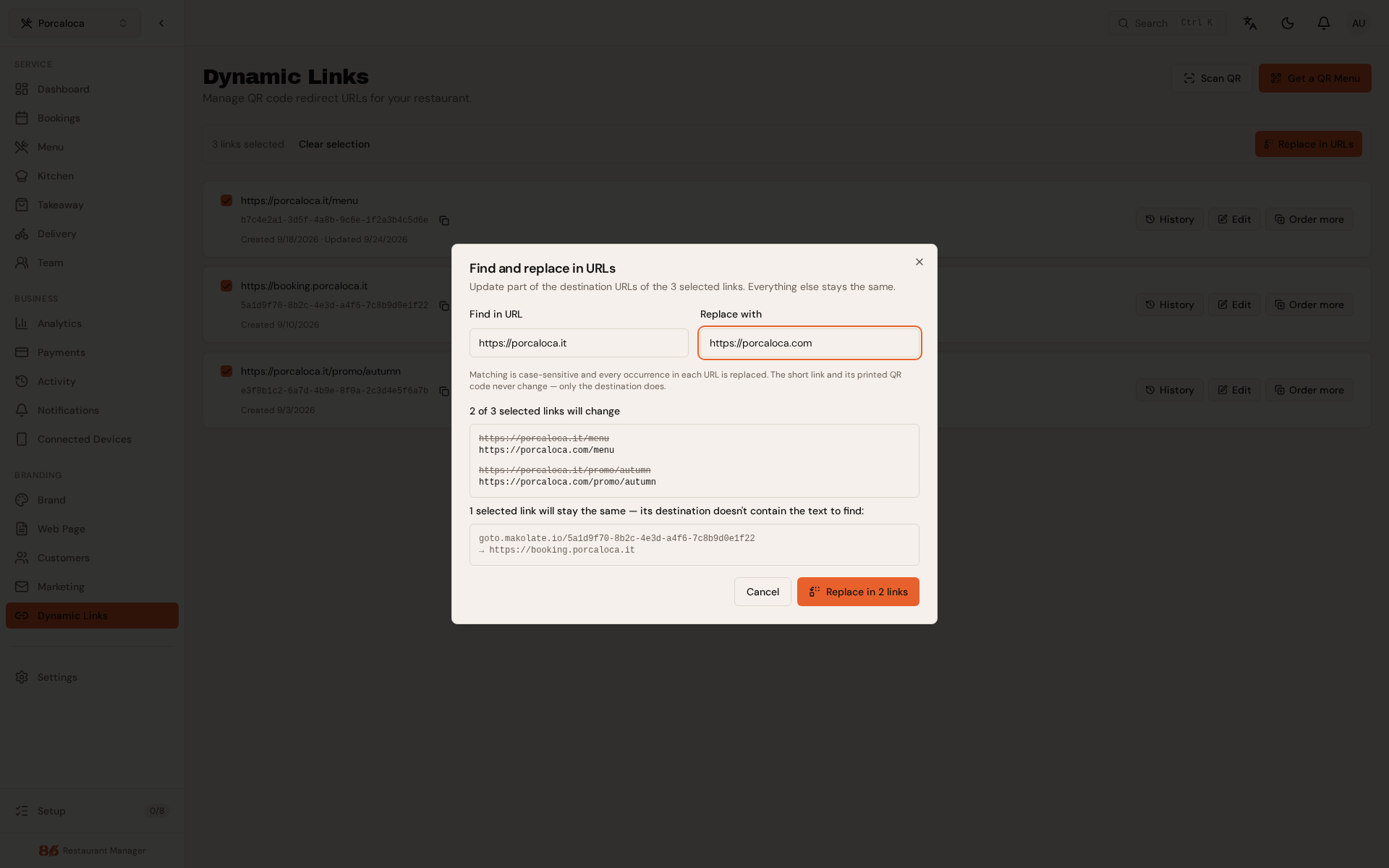
- Tick the checkboxes of the links you want to change. Select all takes the whole list; Clear selection starts over.
- Click Replace in URLs.
- In the Find and replace in URLs dialog, type the text to find into Find in URL and what it becomes into Replace with.
- Check the preview: it lists each link whose destination contains the text, old address above new, and names any selected link that will stay the same. A result that is not a valid URL is flagged before anything is sent.
- Click Replace in N links to apply everything in one go.
Matching is case-sensitive, and every occurrence inside each URL is replaced. The short link — and the QR code printed from it — never changes; only the destination does.
Viewing the change history
Section titled “Viewing the change history”Click History on a link to expand its timeline. You will see when the link was first created and each time its destination changed, with the old and new addresses and the date of every change.
